Your AltText.ai Account
The Account section lets you manage your account information, settings, billing plan, and other account-level features.
Settings
Here you can update global account settings such as your default alt text language, default Final Pass prompt to apply to all generated alt text, your name and password information, erase your Image Library, and even delete your account.
Alt Text Generation
This section lets you control properties of the generated alt text. Values you set here will be applied globally to all generated alt text from our website, integrations, and API calls.
Note
Global settings can be overridden by our web UI, plugins, integrations, or on API calls if different values are specified in their configuration. For example, you may have your global language set to English, but configure the WordPress Plugin to always generate alt text in Spanish.
Text Formatting Options
Control how your alt text is formatted by removing or including specific punctuation and elements, as well as setting length limits.
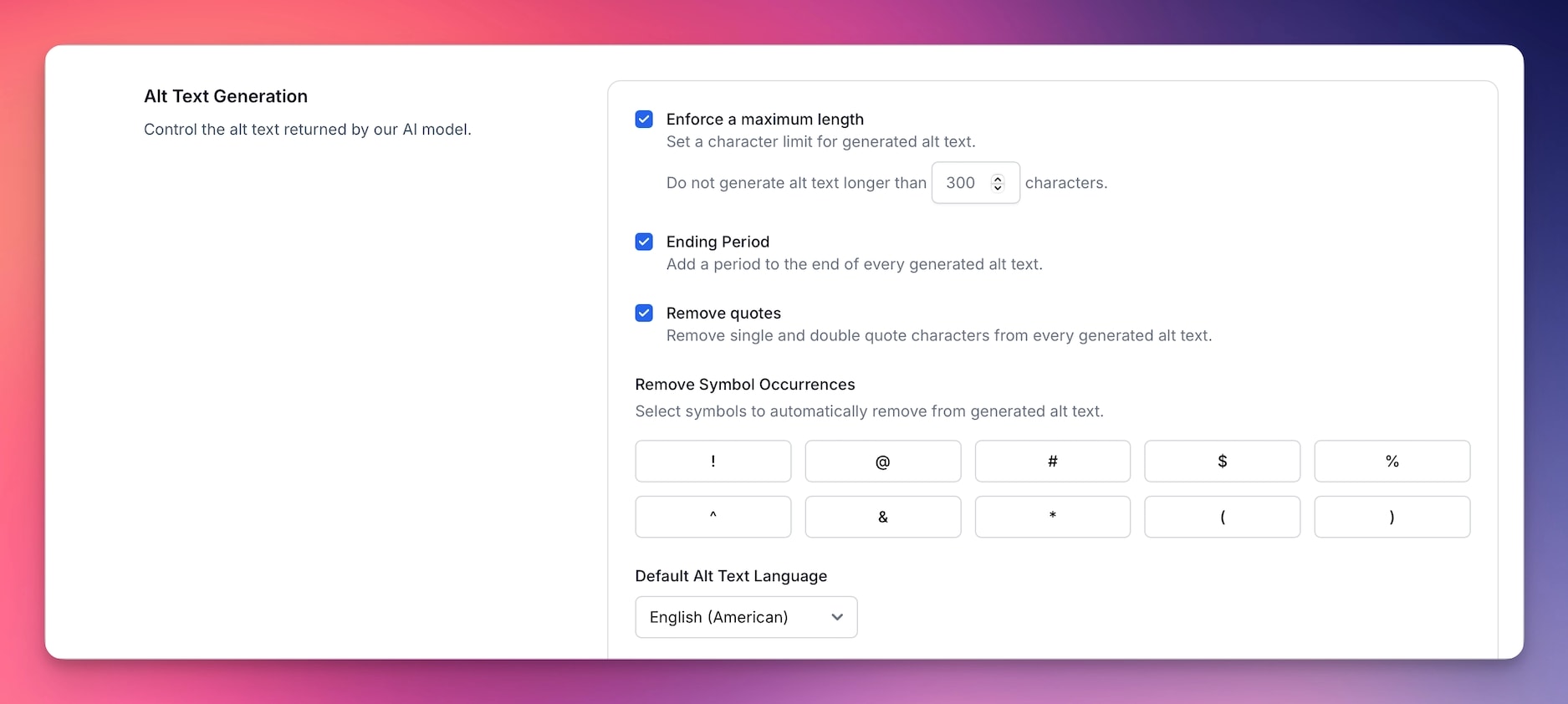
Maximum Alt Text Length: You can enforce a maximum length for any alt text generated, regardless of the AI writing style you are using. Check the "Enforce a Maximum Length" box and set a limit on the number of characters.
End alt text with a period: Automatically adds a period to the end of generated alt text for grammatical consistency.
Remove quotation marks: Strips quotation marks from generated alt text. Useful for contexts where quotes might interfere with HTML attributes or other systems.
Remove punctuation and symbols: Removes punctuation marks and symbols from alt text, creating cleaner text for specific use cases or content management systems that have restrictions on special characters.
Style and Level of Detail
Lets you control the tone of voice and amount of detail used in the generated alt text. If your images typically have a lot of small details that are all important (e.g. a chair with length, width, and height dimensions all listed), you may want to select the Detailed or Elaborate language model. For alt text that is more direct and to the point, choose either the Matter-of-fact or Concise language models.
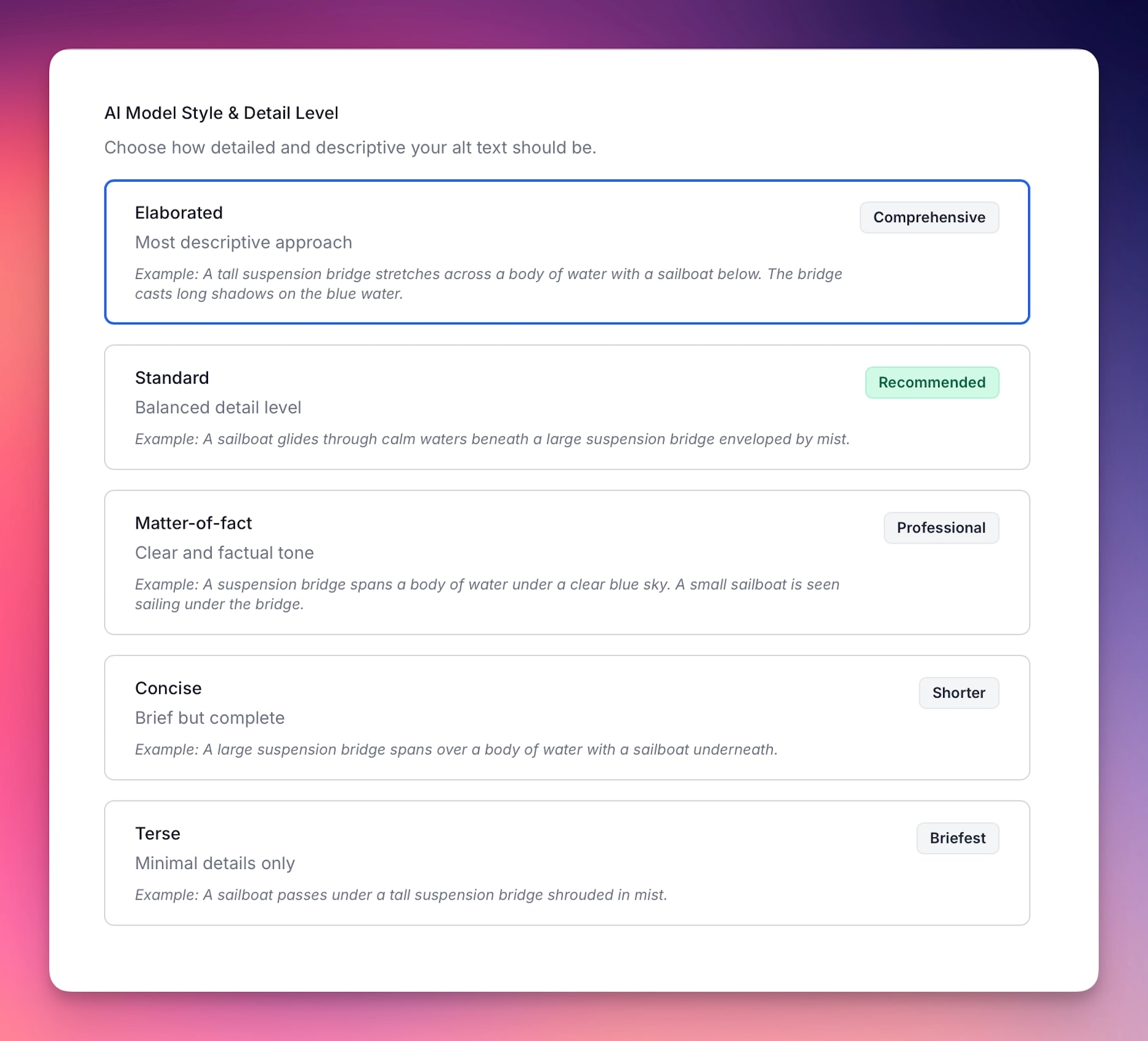
- Elaborated: A tall suspension bridge stretches across a body of water with a sailboat below. The bridge casts long shadows on the blue water. In the background, a layer of fog partially obscures a mountainous landscape under a clear, blue sky.
- Standard: A sailboat glides through calm waters beneath a large suspension bridge enveloped by mist. The bridge's tall cables stretch skyward against a bright blue sky, while faint hills loom in the background.
- Matter-of-fact: A suspension bridge spans a body of water under a clear blue sky. There is light fog in the distance over the water. A small sailboat is seen sailing under the bridge. The bridge casts a shadow on the surface of the water.
- Concise: A large suspension bridge spans over a body of water with a sailboat underneath. The scene is partially enveloped in fog.
- Terse: A sailboat passes under a tall suspension bridge shrouded in mist, with a bright blue sky in the background.
Default Final Pass
Set a default Final Pass prompt to rewrite generated alt text in a consistent tone
or structure across AltText.ai. The current Account Settings field accepts up
to 500 characters and requires the exact {{AltText}} placeholder.
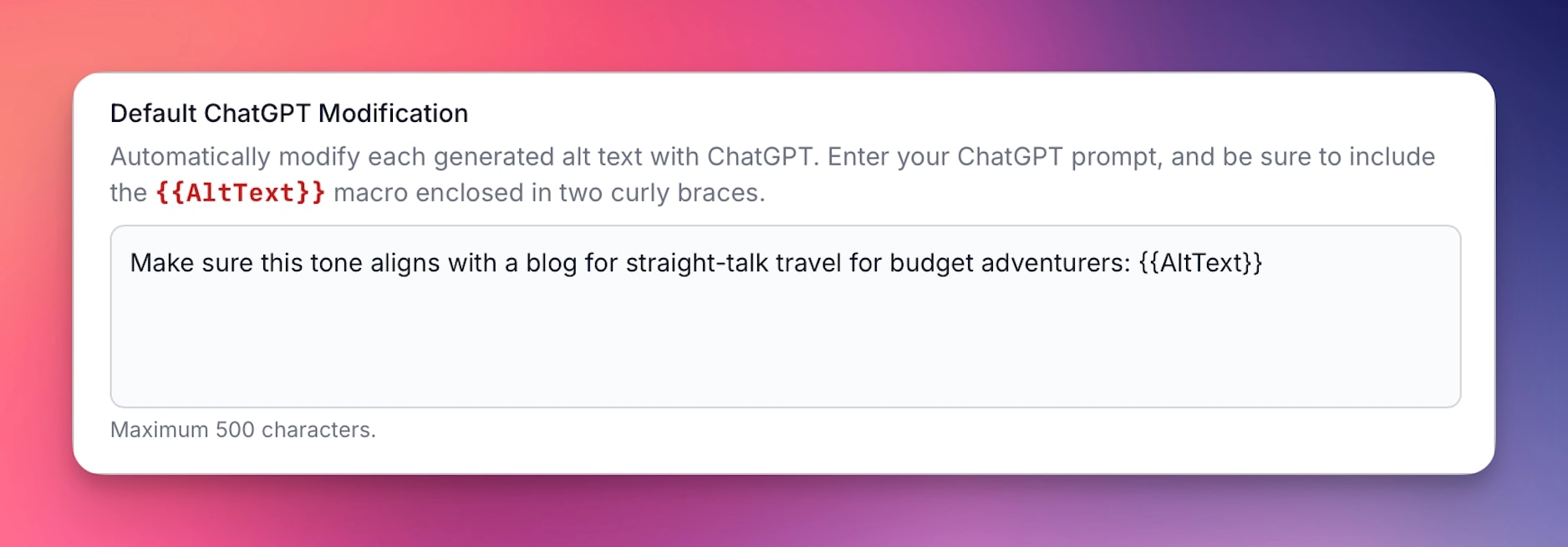
The account prompt is the fallback for website, API, and integration requests that do not provide a prompt of their own. A one-off request or integration prompt takes precedence. See Final Pass for the full surface limits, fallback rules, processing order, and realistic limitations.
Notification Settings
Control when you receive email notifications from AltText.ai for various account activities and processing updates.
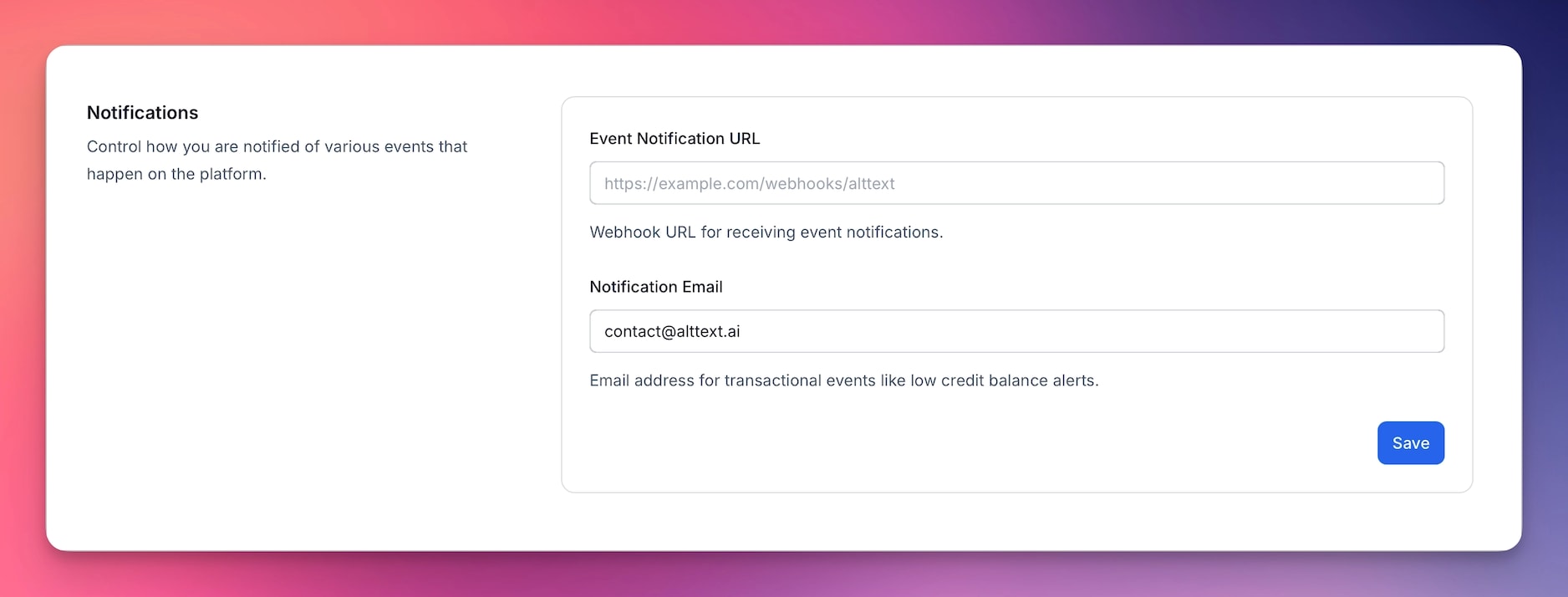
Configure your email preferences for:
- Bulk processing completion: Get notified when large batch operations finish
- Integration updates: Receive alerts about plugin and integration status changes
- Account alerts: Important account-related notifications and security updates
- Feature announcements: Stay informed about new features and improvements
API Keys
You will need API keys if you use any of our integrations (e.g. WordPress plugin, Shopify app, etc), or our Developer API. An API key ties the integration to your account, so when alt text is generated in the integration, the proper account data is used.
API Key Basics
You can create as many API keys as you want. If you run more than one site, give each site or client its own key. Each key then gets its own usage chart, credit count and credit limit, and you can shut off one site without touching the others.
Creating an API Key
To create an API Key:
- Go to the Account: API Keys tab.
- Click the New API Key button.
- Give the key a name, pick a key type, and click Create Key.
Key Types
- Site key: for one site or client. It generates alt text and can't manage other keys. This is what integrations use.
- Full access: for your own scripts and AI assistants. It can also create, rotate and revoke site keys and read their tokens.
You can switch a key's type later from its Edit page, and its token stays the same. Keys made by an MCP or Webflow connection keep the type they were made with.
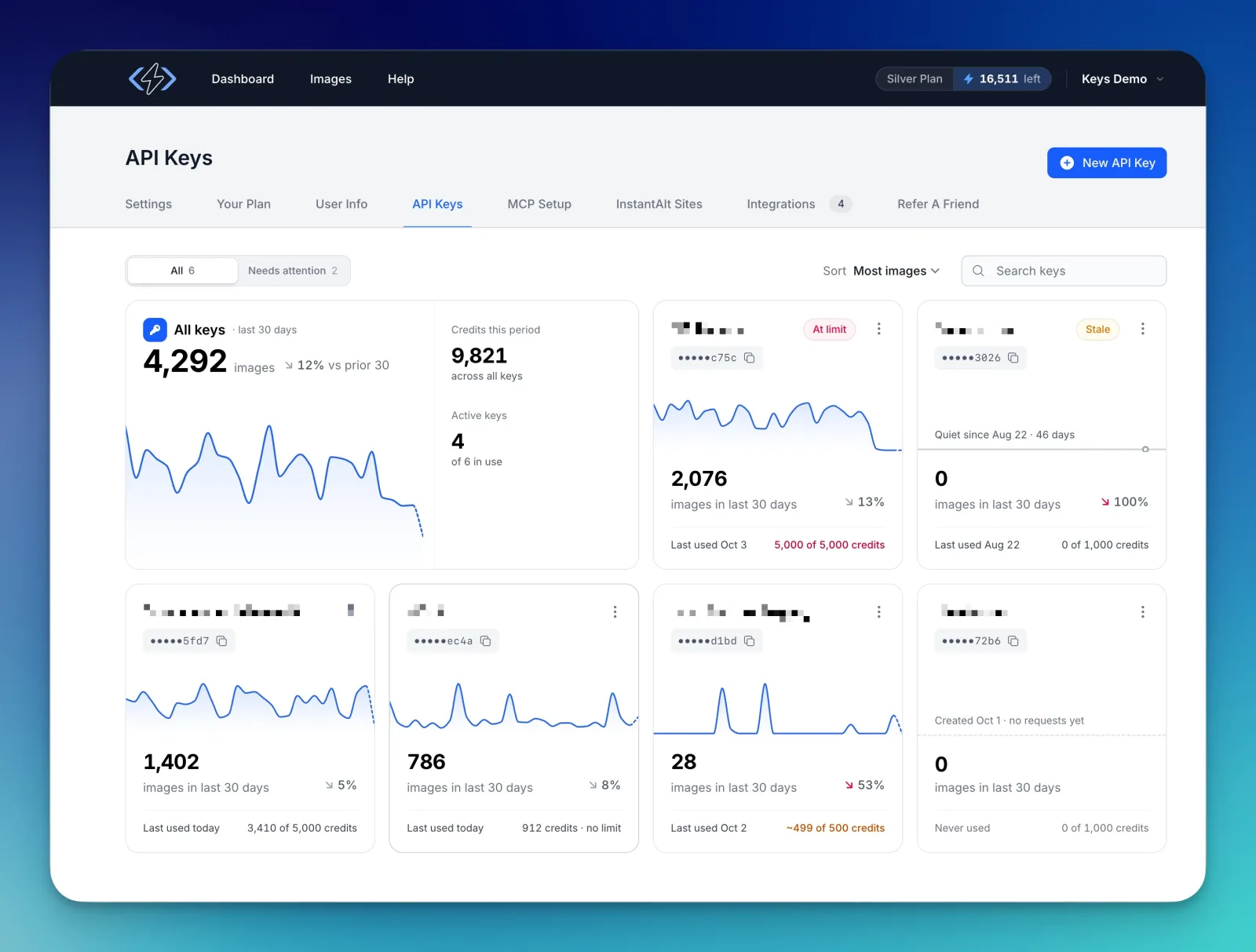
Reading the Key List
Each key gets a card showing:
- How many images it processed in the last 30 days, with a chart and the change from the 30 days before.
- Credits it used this billing period, against its credit limit (or "no limit").
- When it was last used, or Never used.
When you have more than one active key, a summary card at the top totals images and credits across all your keys.
Badges on a card flag what needs a look:
- Stale: the key hasn't sent a request in 30 days or more. Often a site that broke or was taken down.
- At limit: the key used its whole credit limit for this period. Requests with it are refused until its credits reset or you raise its limit.
- Full access: a full access key.
- Revoked: the key was revoked and no longer works.
- A gray badge such as Shopify or MCP connection means an integration or connection made the key, not a person.
Once you have 4 or more active keys, or any revoked keys, you can filter the list (Active, Needs attention, Revoked, All), search keys by name, and sort them. Needs attention shows the keys marked Stale or At limit.
Key Details
Click a key to open its page. It shows credits used this period, images over time, the domains the key runs on, the credits it used in past billing periods, and a history of every change to the key and who made it.
Setting a Credit Limit
To cap how many credits a key can use each billing period (or in total when not on a recurring plan), open the key's Edit page and set Credit limit per billing period. Leave it blank for no limit. When a key reaches its limit, it's marked At limit and its requests are refused until its credits reset or you raise its limit. Without a recurring plan, the limit is a lifetime total and doesn't reset.
Rotating and Revoking a Key
Both are in the key's menu and on its Edit page.
- Rotate gives the key a new token. The old token stops working right away, so update every site that used it. If an integration made the key (Shopify, BigCommerce or WordPress Connect), that integration stops working until it reconnects with the new key. Keys made by an MCP or Webflow connection can't be rotated.
- Revoke shuts the key off for good. Its token stops working right away.
Manage Keys from the API
With a full access key, you can do all of this from our Developer API: create a key for each client site, set or change its credit limit, rotate it, revoke it, and read its usage and history. Make your first full access key in the dashboard, since the API can't create full access keys.
An AI assistant connected to our MCP server can do the same, as long as you allow it to manage your API keys when you connect it. Without write access, it can only see your keys and their usage.
Billing and Payments
The Your Plan section shows your current subscription and lets you buy one-time credit packs. How you manage a plan, invoices, or a refund depends on where you purchased the subscription:
| Billing source | Manage plan and invoices | Refund path |
|---|---|---|
| Direct AltText.ai subscription | Stripe billing portal through Manage Plan | Contact AltText.ai support for review through Stripe |
| Shopify app-billed subscription | Shopify | Shopify billing and support flow |
| AppSumo lifetime purchase | AppSumo for purchase, tier changes, and refunds; AltText.ai for product usage | AppSumo refund policy |
| WooCommerce Marketplace-billed subscription | WooCommerce | WooCommerce billing and support flow |
If you do not currently have a plan, you can select the plan that best fits your needs. The Stripe Manage Plan instructions apply only to subscriptions purchased directly from AltText.ai; externally billed plans show their own management route.
Your credits live in three separate buckets: your monthly plan credits, any rollover credits carried forward from a previous period, and any one-time credit packs you've purchased. Plan credits roll over only when your plan renews normally on its regular cycle. Changing plans — upgrading or downgrading — forfeits the current period's unused plan credits, while banked rollover credits and one-time packs are unaffected. See Credits and Billing for the full rule and timing guidance before you switch plans.