WordPress Accessibility: The 10 WCAG Failures Breaking Most Sites (And How to Fix Them)
96.3% of websites still fail basic accessibility tests. Here's how to fix yours in 2026.
New Year, new resolutions. Site speed? Check. SEO audit? Done. But here's what most people skip: web accessibility. Not exactly glamorous, but it's no longer optional. It's a legal requirement. And honestly? It's the right thing to do.
Yet millions of websites still fail basic tests. They're excluding users and basically inviting lawsuits. Make 2026 different. A solid wordpress accessibility plugin helps, but you'll need more than that. Let's dig into what actually breaks sites and how to fix it.
Key Takeaways
- 96.3% of the top one million homepages still have detectable WCAG failures.
- Missing alt text and low contrast are the most common accessibility violations in 2025.
- Automated tools only catch about 30% of errors; manual testing is required for full compliance.
- AltText.ai automates the image accessibility process, saving time and ensuring accuracy.
- A wordpress accessibility plugin assists with compliance, but it is not a "set it and forget it" solution.
Top 10 Accessibility Mistakes Still Breaking Sites
The WebAIM Million report for 2024-2025 dropped a truth bomb: 96.3% of homepages still fail WCAG tests. Despite all the awareness campaigns, the same errors keep showing up. Here's what's actually breaking sites right now.
Low Contrast Text (WCAG 1.4.3) - Found on 81% of homepages. Grey text on white backgrounds looks modern. Reads terribly for anyone with visual impairments. Pick one.
Missing Alt Text (WCAG 1.1.1) - 54.5% of images have no descriptions. Screen readers just skip these images entirely. Your visual content? Invisible.
Empty Links (WCAG 2.4.4) - 48.6% of sites have links with no text. Usually icon-only buttons without labels. A screen reader announces "Link" and... nothing else. Helpful.
Missing Form Labels (WCAG 3.3.2) - 44.6% of forms forget labels. Assistive tech has no idea what to enter. Is this field for email or phone number? Who knows.
Vague Button Text - "Click Here" and "Read More" everywhere. Great if you can see context. Useless when a screen reader lists all links without surrounding content.
Broken Heading Structure (WCAG 1.3.1) - Jumping from H1 to H4 because it "looks right" breaks navigation. Screen readers use headings like a table of contents. Random hierarchy = lost users.
No Skip Links (WCAG 2.4.1) - Keyboard users tab through your entire navigation menu. Every. Single. Page. A "Skip to Content" link fixes this instantly, but most sites skip it. Ironic.
Zoom Disabled (WCAG 1.4.4) - That `user-scalable=no` in your viewport meta tag? Prevents people with low vision from zooming to 200%. Delete it.
Autoplay Videos (WCAG 1.4.2) - Videos with sound that start automatically interfere with screen readers. User trying to hear navigation instructions? Can't, because your hero video is blasting.
Overlay Widgets - Installing an accessibility overlay and calling it done? That's not a wordpress accessibility plugin, that's a band-aid. Overlays don't fix underlying code. They just add another layer of problems.
Why Accessibility Compliance Matters
Beyond the stats, accessibility is about human rights. The Americans with Disabilities Act (ADA) and the European Accessibility Act (EAA) enforce these standards. Ignoring them puts you at risk of costly litigation. Furthermore, accessible sites rank better.
Google's algorithms favor clear structures and descriptive metadata. A high-quality wordpress accessibility plugin helps align your site with these standards, protecting your business and expanding your audience.
How to Actually Fix Your Site
100% compliance isn't something you install and forget. A wordpress accessibility plugin helps, but you need to actively test. Here's the workflow that actually works.
Start with automated scanning
Run an automated scan first. AltText.ai's crawler catches the obvious stuff - missing alt text, empty links, contrast failures. This is the easy part.
Just don't stop here. Automated tools find maybe 30% of issues. The rest? Manual testing.
Put your mouse away
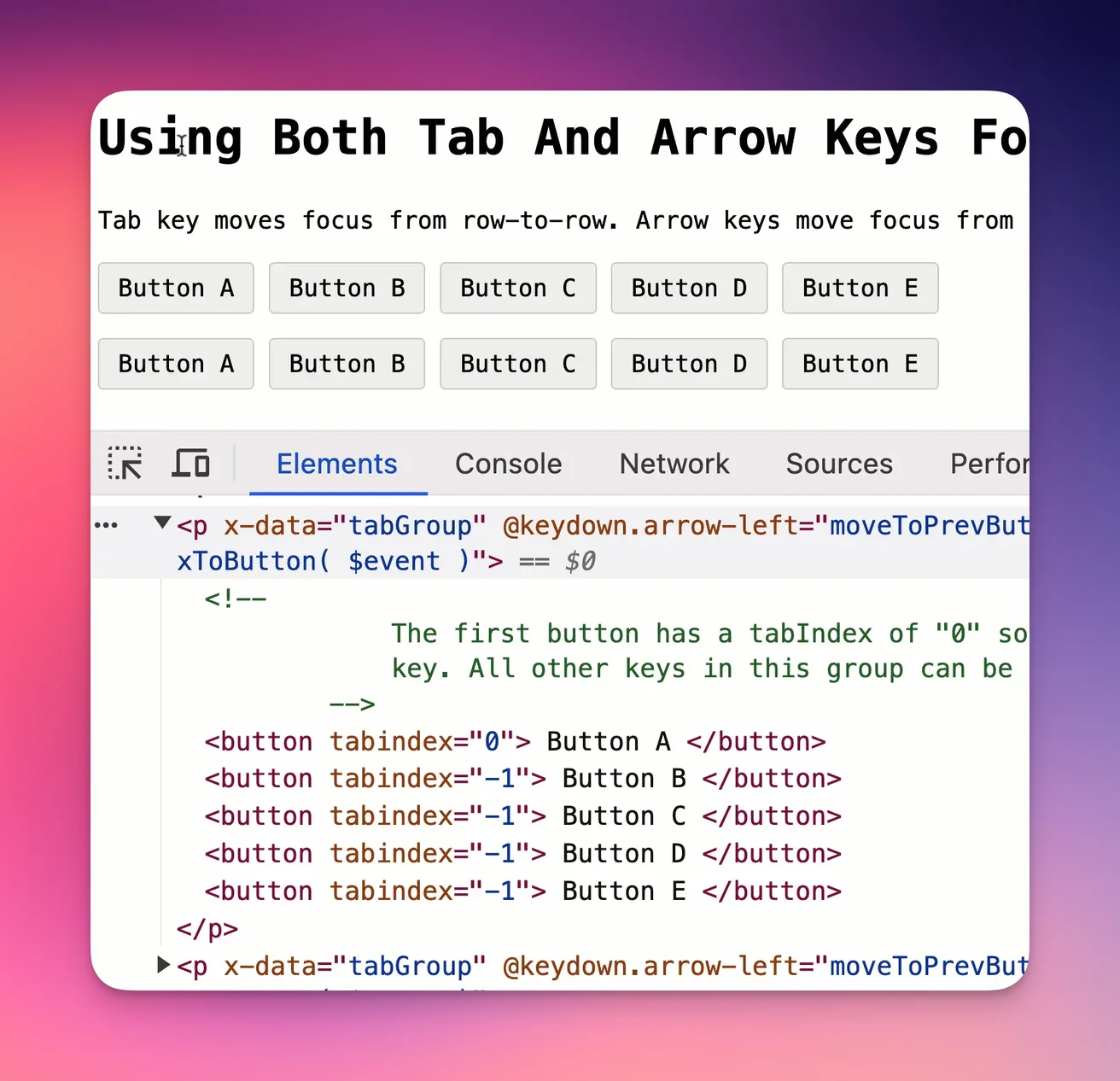
Seriously. Navigate your entire site using only the Tab key. Can you do it?
Watch for focus states. If you can't see which element is selected as you tab through, you're failing WCAG 2.4.7. That subtle outline everyone removes for "clean design"? Critical for keyboard users.
Does a "Skip to Content" link pop up on the first tab press? It should. Otherwise keyboard users tab through your entire menu on every single page.
Test interactive elements. Can you open dropdowns, submit forms, close modals? All using just Enter and Space keys? If not, mouse users are fine but everyone else is locked out.
Turn on a screen reader
Use NVDA (Windows) or VoiceOver (Mac). This is where things get real.
Close your eyes and listen to your site. Does the content make sense when read top to bottom? Or does it jump around randomly because your layout uses absolute positioning everywhere?
Pay attention to images. If the screen reader announces "image123.jpg" instead of describing what's in the photo, your wordpress accessibility plugin isn't doing its job. Or more likely, you don't have alt text at all.
Check hidden content. Mobile menus collapsed off-screen should be hidden from screen readers too. If they're not, users hear a giant menu they can't interact with. Confusing.
Zoom to 200%
WCAG 1.4.4 says your site needs to work at 200% zoom. Text overlapping? Navigation vanishing? Horizontal scroll bars appearing? You fail.
Test it. Zoom in. See what breaks. Fix it.
The ongoing part: content
Code fixes are usually one-and-done. Content? That's never finished.
Every new blog post brings new risks. Use proper heading hierarchy - H1 for title, then H2, then H3. Don't just make text bold because H3 looks the right size.
Write descriptive links. "Click here" tells screen reader users nothing when they're navigating by links alone. "Read our accessibility guide" actually makes sense.
And images. This is where everyone gets stuck. Every single image needs alt text. Writing it manually? Good luck staying consistent across thousands of photos.
Automating Image Compliance with AltText.ai
Step 5 mentioned above is where most site owners fail because writing alt text for thousands of images is tedious. This is where AltText.ai transforms your workflow.
Instead of manually typing descriptions for every upload, AltText.ai uses advanced AI to analyze your images and generate highly accurate, SEO-optimized alt text automatically.
It acts as a specialized wordpress accessibility plugin focused entirely on solving the "missing alt text" error (WCAG 1.1.1).
- Bulk Update: Fix your entire media library history in minutes.
- Auto-Generate: New uploads are tagged with alt text instantly.
- SEO Boost: The AI includes relevant keywords, helping your images rank in search results.
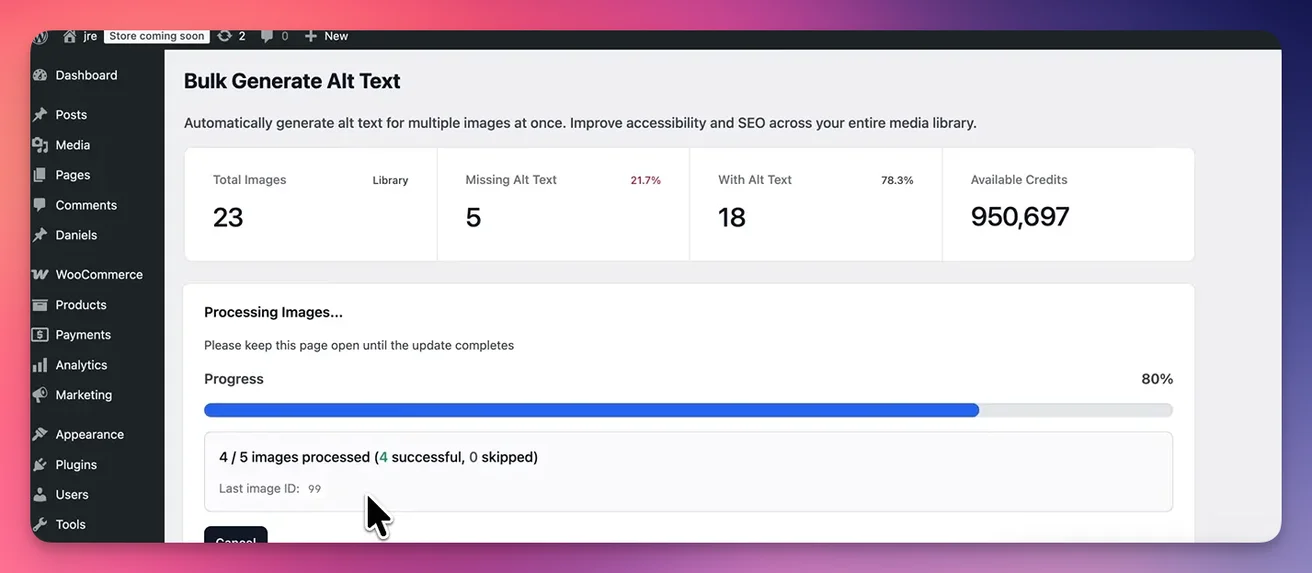
By integrating AltText.ai, you automate one of the most time-consuming aspects of compliance, ensuring you never miss a description again. Achieve 100% Image Compliance - Try AltText.ai Free
Make It Happen
Accessibility isn't something you finish. It's ongoing. But the mistakes above? Those are fixable.
A good wordpress accessibility plugin helps. But you need testing, real testing, and you need to fix the source code. Not just slap a widget on top and hope.
Don't let missing alt text be the thing that fails your audit. Or worse, gets you sued.
- Scan your site for missing descriptions.
- Fix thousands of images in a few clicks.
- Stay compliant automatically with every new upload.
For a detailed guide on how to install and use our tool to fix your accessibility errors, watch this video: AltText.ai - WordPress plugin tutorial
FAQs
1. Can a wordpress accessibility plugin fix all my errors automatically?
No. No plugin can fix 100% of issues automatically. While they can correct code-level errors like adding aria-labels, they cannot judge the quality of your content or the logic of your navigation. Manual testing is always required.
2. Why is manual keyboard testing important?
Many users with motor disabilities rely entirely on keyboards. If your site requires a mouse to hover over a menu or close a popup, it is completely inaccessible to them, regardless of what your wordpress accessibility plugin says.
3. How does AltText.ai help with WCAG compliance?
AltText.ai specifically addresses WCAG 1.1.1 (Non-text Content). By automatically providing accurate text alternatives for images, it ensures screen readers can interpret your visuals, which is a major requirement for full compliance.
4. What is the difference between an overlay and a remediation plugin?
An overlay "sits on top" of your site and tries to modify the experience on the fly, often causing more problems. A true remediation tool or wordpress accessibility plugin helps you fix the actual source code and content of your website.
5. How often should I audit my website?
You should run an automated scan every time you update plugins or themes. However, a full audit including screen reader and keyboard testing should be done at least quarterly, or whenever you launch a major redesign.
Fix the #1 WCAG failure automatically
Missing alt text accounts for over half of all image accessibility errors. AltText.ai generates accurate descriptions for your entire WordPress media library in minutes.