Test a Shopify Alt Text Generator Before the Bulk Run
Use the trial to catch the mistake you would otherwise copy across your catalog.
Your trial gives you 25 AltText.ai credits, and the fastest way to waste them is on the easiest images in your catalog. Ten clean studio shots will come back with ten plausible descriptions and teach you nothing. What you want to know is whether the generator can hold a difference – between the blue bag and its tan variant, between the full product shot and the close-up of its pocket. Build the first batch out of the images that are hardest to describe, keep every generated description next to the photograph it came from, and the failures surface in ten minutes instead of after you have run the whole catalog.
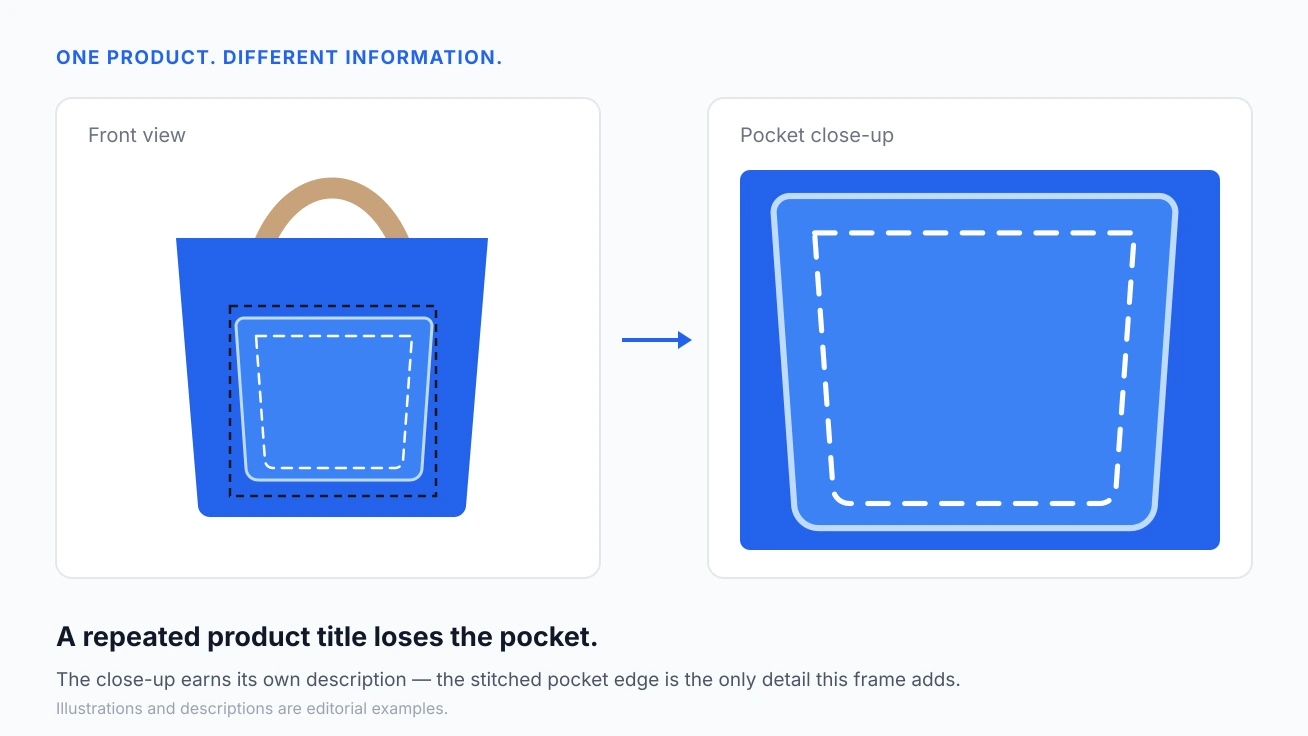
The blue bag, its tan variant, and its stitched-pocket close-up need three different descriptions. A generator that repeats the product title across all of them has filled three fields and described nothing.
Which images should go into your first batch?
Start with 10 images you can pull up together in Shopify. Include the one you'd hesitate to describe yourself. For a bag store, the pocket close-up tells you more about a generator's actual judgment than another front view on white.
| Image to include | What you're testing | Reason to stop and inspect |
|---|---|---|
| Blue and tan versions of the same bag | Whether the visible variant survives the product context | Both descriptions say blue because the shared title does |
| Close-up of the outer pocket | Whether the description names the detail in this view | It repeats the front-view description and misses the stitching |
| A bag photographed beside a laptop | Whether it separates visible objects from inferred claims | It invents a laptop size or says the bag is waterproof |
| A product image with carefully written alt text | Whether the chosen bulk setting preserves your work | The existing description changes during a missing-only run |
| A photo named upload-final.jpg | Whether the description comes from the image and useful context | The filename reappears as the description |
Adding more front views of the same Shopify product makes the batch bigger without testing anything new. A useful record pairs each image's URL with its original alt text and the generated description – so you know exactly what you've got. Without the photograph in front of you, "blue bag with tan handles" sails through review even when it is sitting on the tan variant.
Your trial includes 25 AltText.ai credits. A standard Shopify image generation uses 1 credit, and each additional language costs 1 extra credit per image. Reserve a few for rerunning a corrected product title or a description that missed the pocket detail – see the AltText.ai trial and credit details.
What should you check in a generated description?
Imagine a Shopify product titled "Harbor Canvas Tote - Blue" with "Harbor Goods" in the Vendor field. The photo shows blue canvas, tan handles, and an outside pocket. Those product names are invented for this example; all the descriptions below are editorial examples written for this guide.
| Description to review | Editorial decision |
|---|---|
| Harbor Canvas Tote - Blue | Names the product but loses the tan handles and outside pocket visible in the photo. |
| Blue canvas tote with tan handles and an outer pocket | Describes the visible bag without inventing material properties. |
| Premium waterproof tote for work, travel and everyday adventures | Adds claims and promotional language the photograph cannot establish. |
| Close-up of the stitched outer pocket on a blue canvas tote | Attach this to the pocket photo; the front view needs its own full-bag description. |
AltText.ai's Shopify integration can pull in the product title and vendor as context – which is genuinely useful when a photograph alone can't name what it's showing. A shared title like "Blue" can conflict with a tan variant's photograph, and if you rerun the image without resolving that conflict, you're just feeding the generator the same misleading context all over again.
Treat "waterproof" differently from "blue." A visible color you can check against the image; water resistance needs product evidence to back it up. Google's image guidance comes down pretty clearly on the side of useful, descriptive alt text and warns against keyword stuffing. In that pocket close-up, "best travel tote" is burning space you could spend describing the stitching.
Should you generate alt text for decorative images?
The stitched-thread divider graphic on the Harbor Canvas Tote's product page – the one that sits between the description and the reviews – carries zero information about the bag itself. That's a case for an empty alt attribute: alt="". W3C's decorative image guidance gets into why describing a purely decorative ornament just adds noise for someone using a screen reader. Omitting the attribute entirely is a different call; some screen readers will go ahead and announce the filename instead.
The same blue-bag photograph can do completely different jobs depending on where it lives. On the product page, it might be showing off a pocket the description never mentions – that's doing work. But drop that same image beside a link already labeled "Shop the blue canvas tote," and suddenly it's adding nothing that link doesn't already say. W3C's alt decision tree makes placement part of the decision, not an afterthought.
On a collection tile where only the bag photo links to its product page and the link has no other label, use alt text that names the destination, such as "Harbor Canvas Tote, blue." A product title printed outside that link does not automatically name the link.
How do you keep a bulk run from overwriting good work?
AltText.ai's Shopify bulk update gives you two options: fill in missing alt text or replace what's already there. When you've already got useful copy in place, start with the missing-only option. Throw a product with a hand-written description into your test batch and make sure it comes through untouched. Use the Shopify setup and bulk-processing guide to set up that first run.
- Save the existing pocket description. Copy it into your test record beside the Shopify product URL before changing anything.
- Use AltText.ai's missing-only bulk setting. Include a blank image and the image with the saved description so the test covers both cases.
- Compare the saved Shopify fields. Open the product media in Shopify and check that the blank was filled and the pocket description is unchanged.
- Inspect the Shopify storefront. Open the same product in the browser and check the rendered image's alt attribute, especially if your theme uses custom image markup.
Shopify documents the media editing route under adding alt text to media: open a product, select its media, edit the alt text, and save. What's in that saved field is what Shopify is actually holding. What's on the rendered storefront image is what your theme is actually placing on the page – and those two things aren't always the same. If your hand-written description survived the save but isn't showing up in the rendered image, follow the Shopify Liquid alt text troubleshooting guide before you regenerate anything.
When is the batch ready to become a catalog run?
For this Shopify trial, stop on a wrong color or an invented property. A close-up that loses the pocket's construction counts as an unfinished description too. Also stop if the missing-only setting overwrites your saved pocket description. A tan variant described as blue tells the shopper something the photograph plainly contradicts.
The Shopify fields are sitting empty right now, and this first batch costs ten of your 25 trial credits – spend them here. Give the review a 10-minute budget and note how many descriptions need hand edits when you're done. If the corrections are isolated and the saved pocket description comes through intact, go ahead and expand to another image group. If you're fixing the same color error on loop, hold that group and sort out the context first.
- Blue and tan variants: the descriptions follow the visible colors.
- Pocket close-up: the construction detail survives.
- Product claims: no invented waterproofing or laptop capacity.
- Existing Shopify alt text: the saved pocket description is unchanged.
- Storefront: the rendered image has the intended alt attribute.
If AltText.ai keeps dropping the pocket stitching, pull the close-up files out of the bulk run entirely. Save the failing image – something like pocket-detail.jpg – right next to its generated description, correct that description by hand, and recheck that photo before you let any more stitched-pocket images into the queue.
Frequently asked questions
-
For a big catalog, AltText.ai's Shopify app can generate and save alt text in bulk – no one-by-one entry required. Use the missing-only option to leave your good existing descriptions alone. Before you let it loose on everything, check 10 images first: the blue variant, the tan variant, a pocket close-up. Then expand the run. Total time depends on processing speed and how much correction your images actually need; a trial run tells you what the review work looks like before you commit the whole catalog.
-
AltText.ai gives you 25 trial credits with no credit card required. Pick your test images from the actual Shopify catalog you're planning to process. A blue bag and its tan variant will tell you a lot more than some unrelated stock photo will.
-
No. Checking the pocket image's description does not check a Shopify checkout button's accessible name or keyboard behavior. Alt text addresses non-text content – see what alt text is for that scope. The batch record covers the images you inspected; Shopify checkout controls need their own separate checks.
-
If the pocket description already communicates what that photo adds, keep it. More words can introduce details the image doesn't actually support. Spend the next run on a bad filename or a wrong variant, and leave the correct pocket description exactly where it is.
Pick the blue bag, its tan variant and the pocket close-up. Save their current descriptions before you start the AltText.ai Shopify trial.
Run the trial batch that actually tests your catalog
25 free AltText.ai credits, no credit card required. Test the blue bag, the tan variant and the pocket close-up before you commit the rest of your Shopify catalog.