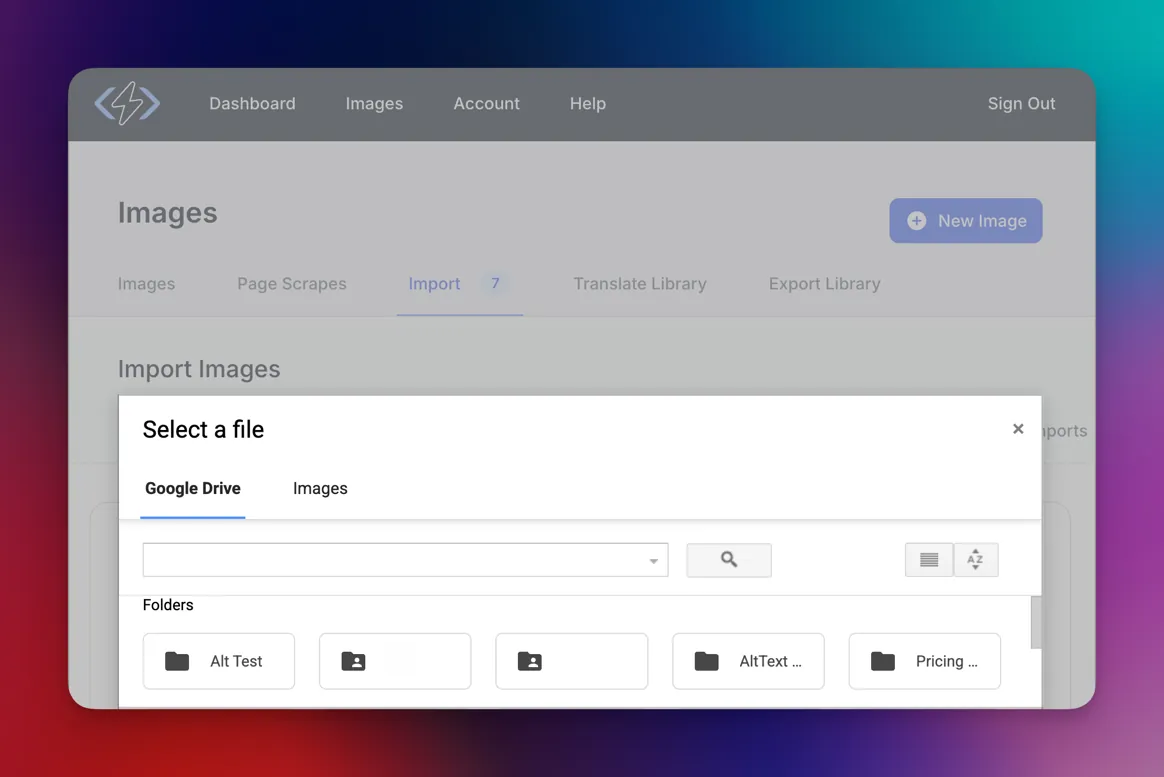
Select a Folder. Come Back When It's Done.
Pick a single image or an entire folder — the Google Picker handles both. When done, alt text is written back to each file's description in Drive. Your images and their descriptions live in the same place.
Whole Folders at Once
Select a folder and every image inside it gets processed automatically — including nested folders. No file-by-file clicking.
Written Back to Drive
Alt text is saved to each file's description in Google Drive. It stays with the image wherever it goes.
How It Works
Three steps from connection to alt text in Drive:
Connect Google Drive
Sign in to AltText.ai and connect your Google account. One click — no configuration needed.
Pick Images or Folders
The Google Picker opens inside AltText.ai. Select individual images, or pick a whole folder — subfolders are included automatically.
Alt Text Generated and Saved
Alt text is generated for every image and written back to each file in Drive. Check back when it's done — no need to stay in your browser.
Everything You Need, Nothing Extra
Built for teams who already organize their images in Drive:
Whole Folders, Not Just Files
Select a folder and every image inside it gets processed — including nested folders. Organize in Drive the way you already do; AltText.ai follows your structure.
Alt Text Stays With the Image
Generated alt text is saved to each file's description in Drive. It's there when a teammate opens the file, when you share a folder, when the image moves to another system.
No Setup Required
Connect with your Google account and you're in. The file picker opens inside AltText.ai — no configuration, no scripts, nothing to install.
130+ Languages
Generate alt text in any of 130+ languages. Set the language per run — useful for multilingual asset libraries or teams serving multiple markets.
AltText.ai vs. Adding Alt Text Manually in Drive
Doing It Manually
- Open each image one by one in Drive
- Write a description in the file details panel
- No way to batch a folder at once
- Hours of work for even a modest library
With AltText.ai
- Select a folder — all images inside are processed
- Alt text written back to Drive automatically
- Nested folders handled without extra steps
- Thousands of images done while you focus elsewhere
Who Uses This
Marketing Teams
Campaign images organized in Drive by brand, quarter, or project. Process an entire folder before a launch — alt text is ready when the images are.
Agencies
Deliver final image sets to clients with descriptions already in Drive. Clients get everything they need for web publishing without a separate handoff step.
Enterprise Product Teams
Product photography stored in shared Drives by product line. Process entire categories in bulk — alt text in Drive means downstream systems pick it up automatically.
Archives and Collections
Museums, libraries, and universities scanning historical images to Drive. Generate descriptions for thousands of files at once — alt text saved directly into Drive metadata.
Simple, Transparent Pricing
Annual plans include rollover credits. Pick the tier that matches your image volume.
Bronze
Perfect for personal blogs and portfolios
$49/year
1,200 credits (4¢ per image)
View Bronze planSilver
Growing websites and small businesses
$189/year
6,000 credits (3¢ per image)
View Silver planGold
E-commerce stores and content teams
$489/year
24,000 credits (2¢ per image)
View Gold planPlatinum
Enterprise publishers and platforms
$2199/year
120,000 credits (<2¢ per image)
View Platinum planNeed more? Contact us for enterprise pricing.
Google Drive Alt Text FAQs
FAQ
-
Yes — generated alt text is written to each file's description field in Google Drive automatically. You can see it in the file details panel in Drive, and it stays with the image wherever it goes.
-
Yes. The file picker lets you select individual images or entire folders. When you pick a folder, every image inside it gets processed — including images in nested subfolders. No need to navigate folder by folder.
-
Yes. The picker shows any file or folder you have access to, including shared drives and folders shared with you. As long as you have read access and can update file descriptions, the integration works.
-
JPG, PNG, WebP, GIF, TIFF, and other common image formats. Google Docs, Slides, and Sheets are not supported — only image files.
-
It depends on image count and size, but typically several hundred images per minute. Processing runs in the background — you don't need to keep your browser open.
-
Yes. Once processing is complete, you can download a CSV with the filename and generated alt text for every image in the run — useful if you need to bring the descriptions into another system.
Nothing found.
If you can't find what you're looking for, please contact our customer support team.
Related Solutions
Need alt text for other platforms? We integrate with these too:
Cloudinary Alt Text Integration
Webhook-based automation for Cloudinary DAM with automatic writeback.
Dropbox Alt Text Generator
Select images from your Dropbox library and process in bulk.
Bulk Processing Options
Process images via API, CSV upload, or URL scraping.
Accessibility Compliance
How AI-generated alt text helps meet WCAG 2.1 requirements.
Ready to Process Your Google Drive Library?
Connect Google Drive, select your images or folders, and let AltText.ai handle the rest.
Free trial, no credit card needed. 25 images included.